

PDF watermarking: visible labels and verifiable provenance
Add a visible PDF watermarkWatermark: A mark placed in the content itself, visible or hidden, so it can be found again after the file is copied. in Acrobat. Learn how it differs from a signature, and check the file you send.
Download this guide (PDF). Free, with no email or account.
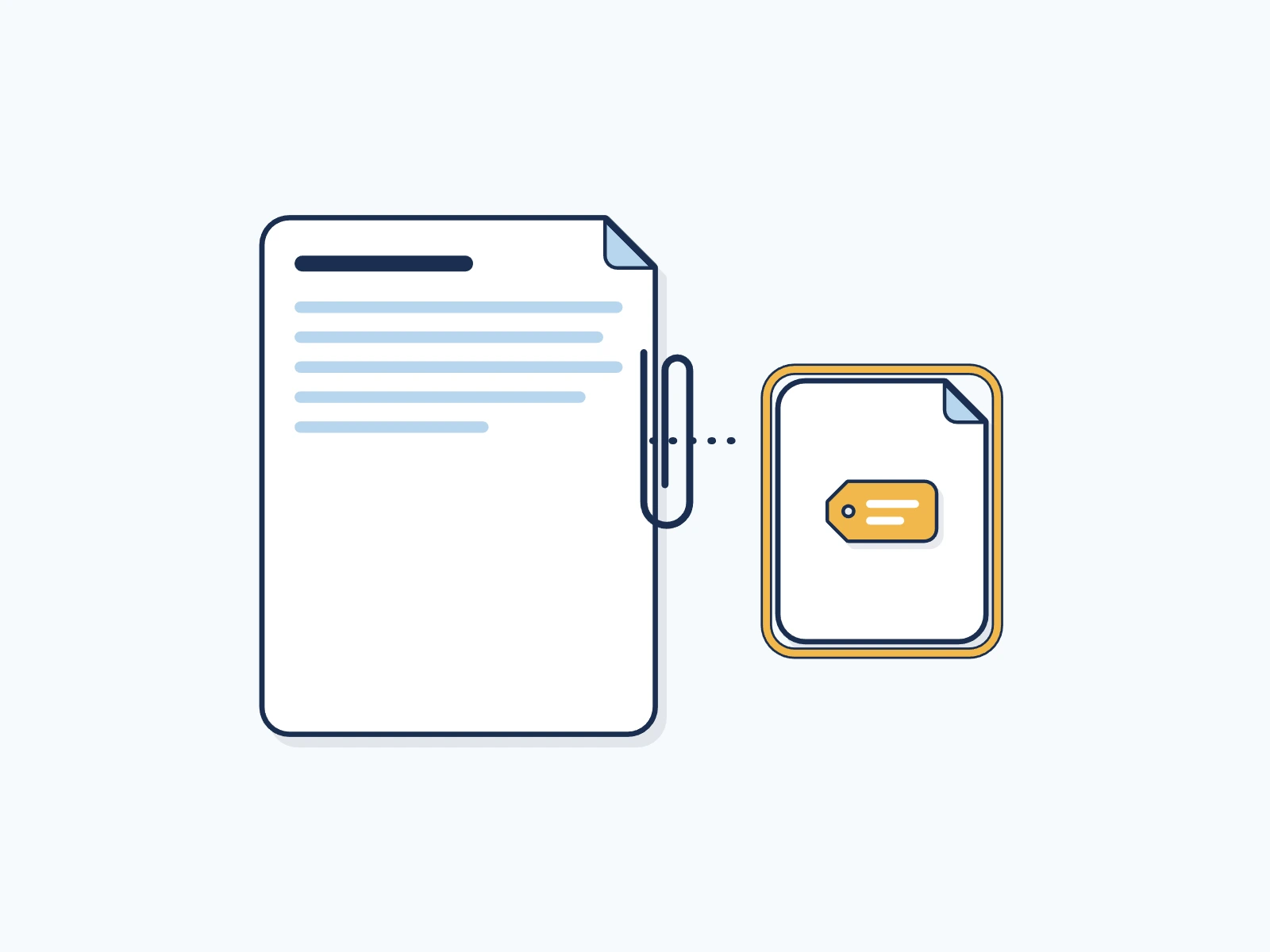
Add a visible label in Acrobat
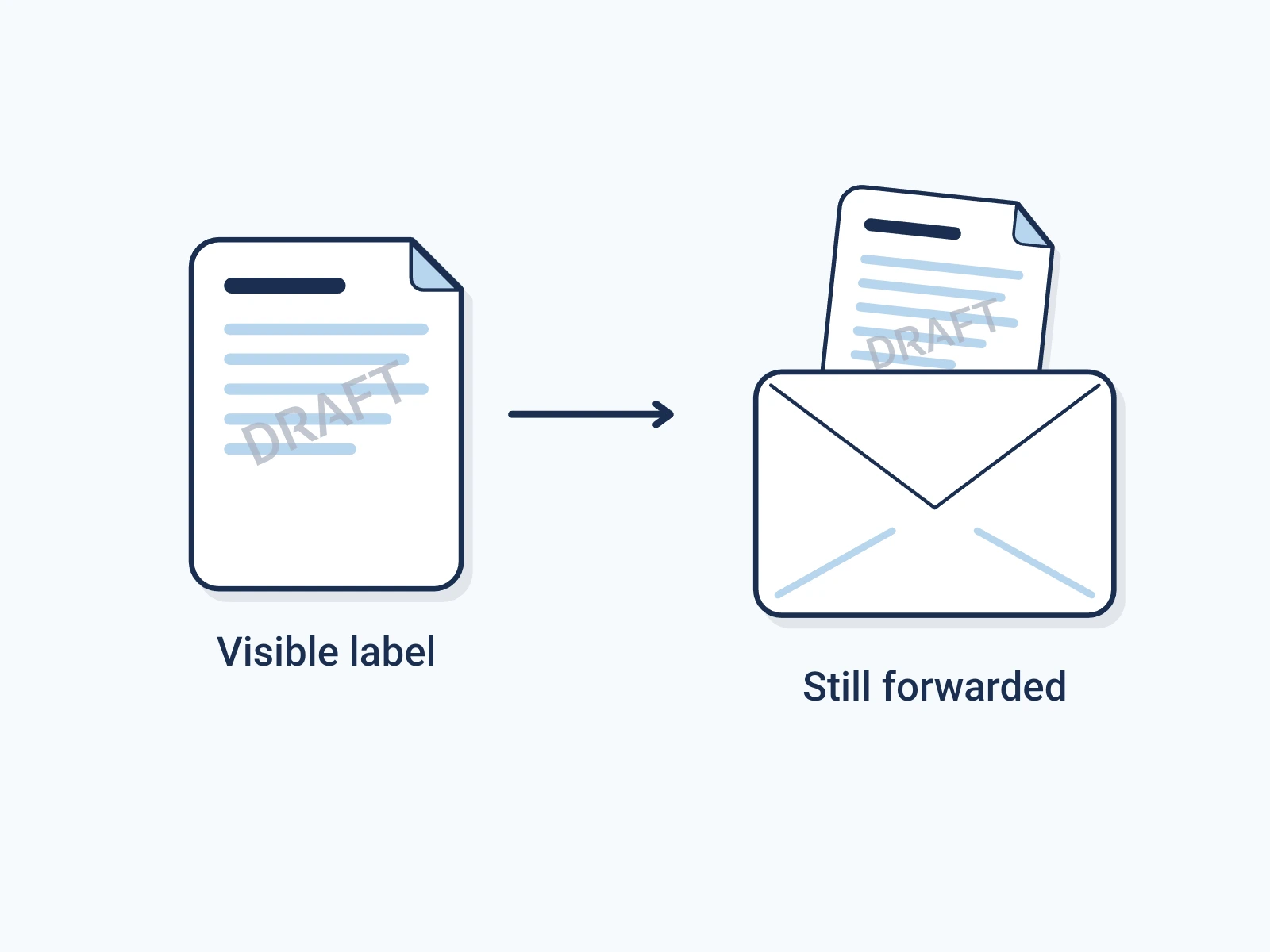
A PDF watermark is text or an image placed on a page, such as DRAFT or a logo. It gives readers a visible cue. Adobe treats watermarks, which sit in the page, as different from stamps. A familiar logo or the word CONFIDENTIAL does not prove who sent the file. [1]
An illustration: a consultant marks a proposal DRAFT before sending it for review. The label shows its status. It does not stop anyone from forwarding the file.
- In Adobe Acrobat desktop, open the PDF, choose Edit, then Watermark > Add in the left pane. [1]
- Choose Text for a label or File for an image. Set the size, opacity, rotation and position. [1]
- Preview it and check the page range. Keep it clear of small text, charts and signatures. [1]
- Select OK, save a separate copy, and reopen that copy before sharing. Check both tall and wide pages.
These are steps for Acrobat desktop, not for every PDF viewer. Your tools depend on your app and edition.
Labels, signatures, and credentials differ
| Visible watermark | PDF digital signature | C2PA Content Credential | |
|---|---|---|---|
| What it is | Text or an image on the page | A certificate-based seal on the file | A signed record of statements about the file |
| Checked in | Your eyes | Acrobat's Signatures panel | A C2PA checker |
| Shows | A status, such as DRAFT | Who signed and whether the signed content changed | Who signed, what they declared and whether the file changed |
A visible watermark is part of the page. A certificate-based PDF digital signatureDigital signature: Math that shows which key signed something and that it has not changed since. Any edit to the signed bytes breaks it. lets software check the signed content and the signer's certificate. A picture of a handwritten signature is not that check. In Acrobat, open the Signatures panel, choose Options > Validate Signatures, and read the Signature Properties and certificate. [2]
C2PAC2PA: The Coalition for Content Provenance and Authenticity: the group that publishes the open standard for content labels. Content CredentialsContent Credentials: The public name for a C2PA label, often shown as a small CR icon that opens who signed the content and what they declared. are a different record: statements about a file, sealed in a signed manifestC2PA manifest: The signed label itself: a small package inside a file that records who signed it, what they declared and how to check it.. A compatible checker tests the signature, the credential, the statements and their tie to the file. C2PA 2.4 describes this system. It does not prove every statement in a document is true. [3]
You can use all three in one workflow. Adding a watermark does not create a PDF signature or a C2PA manifest. Support for one does not mean support for the others. Encypher's PDF provenanceContent provenance: The record of where a piece of content came from and how it changed, carried with the content itself. guide shows one signing and checking workflow. [4]
- For a visible status cue, add a label.
- For proof of a signature or provenance, read the matching check result.
CONFIDENTIAL is a notice, not a lock. Control who gets the file and what they may do with it separately.
Check the shared copy
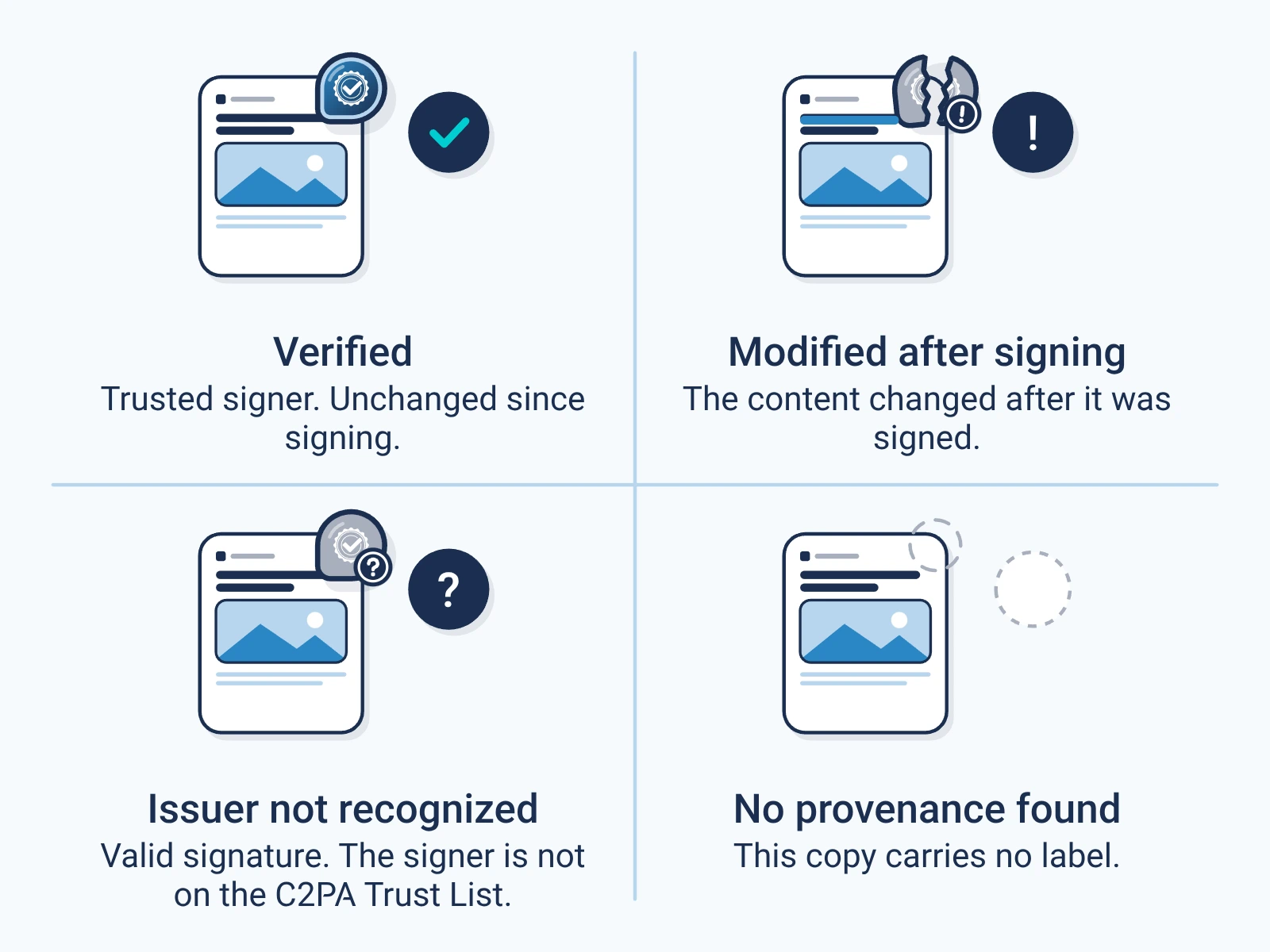
Saving, exporting and printing are separate steps. Check the final file. Do not assume its watermark, signatures or credentials match the source. Acrobat lets you set how the watermark looks. Check the screen and a printed sample if people will read it on paper. [1]
A printed page or screenshot can show a label. Its look alone is not a digital check. Send people the digital file and tell them which checker to use. A PDF signature panel and a C2PA checker answer different questions. [2][3]
- Look at every page for missing marks, cut-off marks and low contrast.
- Check signatures or credentials on the exact file you send.
- Ask readers to look at signer trust and warnings, not badges.
Keep the original and the final copy apart. A visible label cannot stop copying or prove ownership.
Download the collection
Free, direct downloads. No email or account, and nothing to subscribe to.
- Complete resource pack (ZIP). All four guides, the editable set and the deck, in one file.
- Editable guide collection (DOCX). All four guides in one document you can edit.
- Guide collection (PDF). All four guides in one file to read or print.
- Provenance presentation (PPTX). A deck you can edit in PowerPoint. Keynote can open it, but check the layout. It is not a .key file.
- Provenance presentation (PDF). The same deck as a PDF, to read and share.
Each file is signed by Encypher Official. Open the file you downloaded in the public checker. The check shows who signed and whether the file changed. It does not prove the content is true. An edited or exported copy is a new file, so check it on its own.
Create. Mark. Endure.
Sign your own files free, so the people who get them can check them.