

PowerPoint and Keynote watermarks explained
Add a repeating watermarkWatermark: A mark placed in the content itself, visible or hidden, so it can be found again after the file is copied. in PowerPoint or Keynote. Then check the exported PDF before you share it.
Download this guide (PDF). Free, with no email or account.
PowerPoint: use the slide master
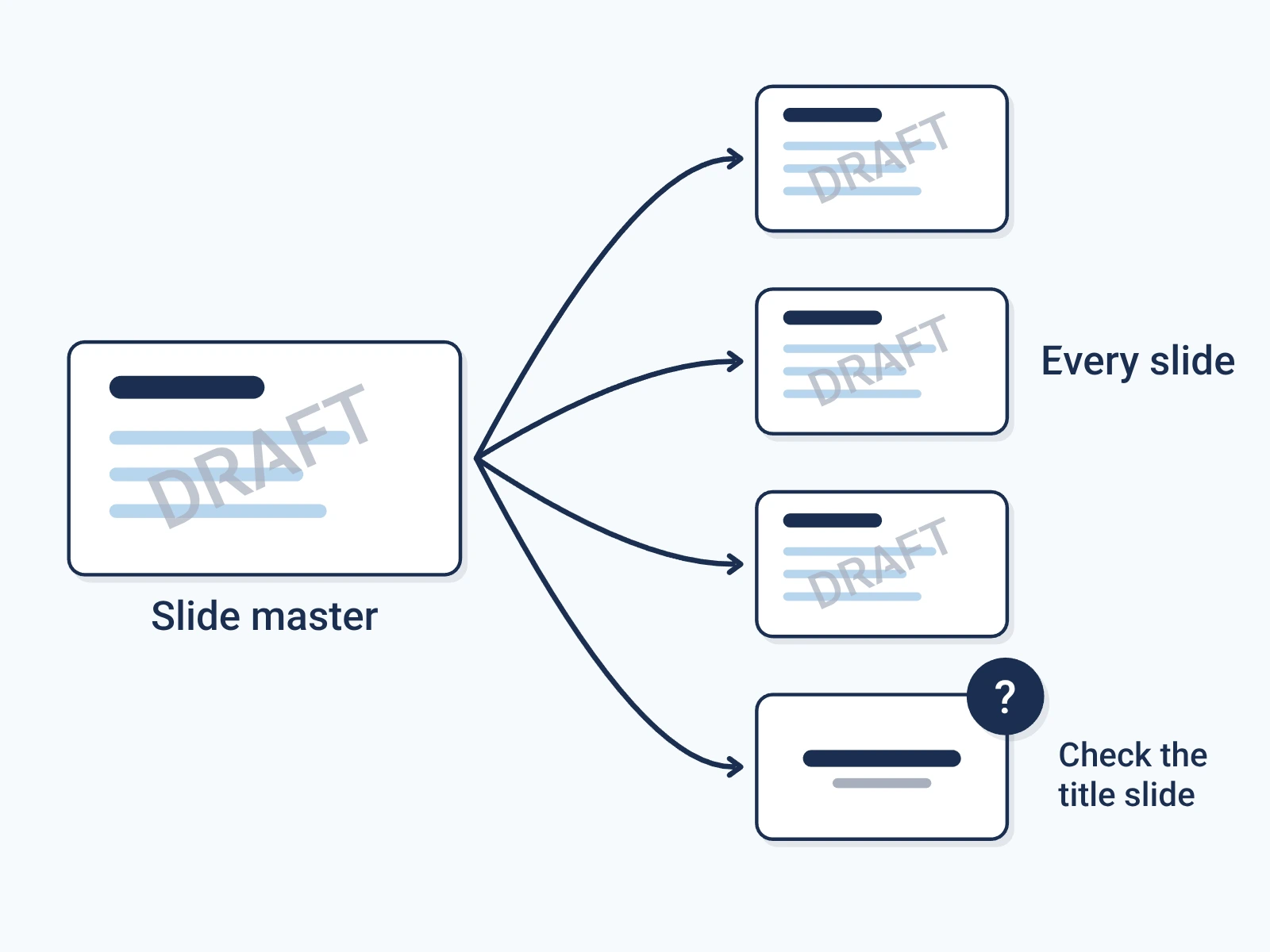
In a deck, a watermark is usually faint text or an image repeated behind the content. It can say DRAFT or show a brand. It does not stop copying, prove who made the deck, or limit who can open it. A slide master puts repeated items on every slide without editing each one.
In PowerPoint desktop, Microsoft shows how to make a watermark from a text box in Slide Master view. PowerPoint has no ready-made watermark gallery like Word's. [1]
- Choose View > Slide Master. Select the top master thumbnail in the left pane. [1]
- Choose Insert > Text Box, draw the box, and type your watermark text. [1]
- Select the text and pick a light font color. Change the size, and turn it with the rotation handle if you like. [1]
- Close Slide Master view. Check the title slide and each layout. Microsoft notes the title page can be an exception. [1]
An illustration: put DRAFT on review slides, then check that the title page and slides full of images also show it clearly.
Keynote: edit the layouts you use
| PowerPoint | Keynote | |
|---|---|---|
| Where you set it | View > Slide Master | View > Edit Slide Layouts |
| What one change covers | The master and its layouts | Slides that use that one layout |
| Check after | The title slide and each layout | Slides built on each edited layout |
Keynote on Mac uses slide layouts for repeated items. Text or images added as plain layout objects become part of the background on slides that use that layout. Apple treats these as different from placeholders, which you edit slide by slide. [2]
This works well for a repeated word or a small logo. Place it where it does not cover charts, captions or slide numbers. A quiet label in a corner can be easier to read than a big mark across busy slides.
- Open your deck. Click the View button in the toolbar and choose Edit Slide Layouts. [2]
- Pick a layout your slides use. Add your text or logo as a plain object, not a placeholder. [2]
- Set how it looks and where it sits. Repeat for each layout the deck uses; one layout does not change the others. [2]
- Click Done, then check slides built on each edited layout. [2]
A layout object is a design shortcut, not security. Anyone who edits the layout can change the mark.
Export, inspect, and share deliberately
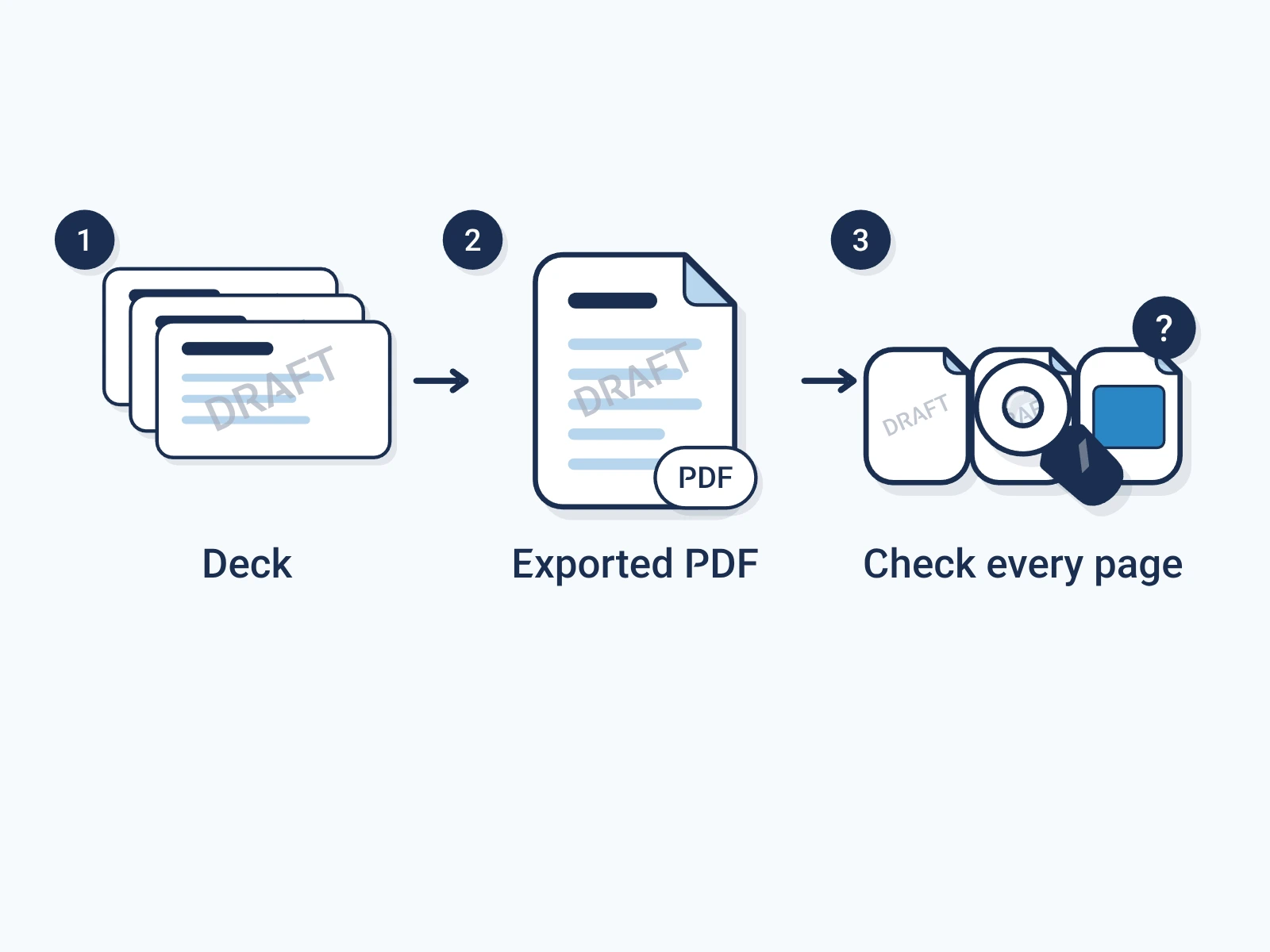
Check the exported PDF, not only the editable deck. In Keynote on Mac, choose File > Export To > PDF. Before you export, review the options for presenter notes, skipped slides, comments and build steps. They change what people receive. [3]
Keynote can open and edit PPTX files. That does not make a PPTX a native .key file, or promise it looks the same. After you import, check fonts, text wrapping, images and where the watermark sits. [4]
- Look at every PDF page for missing or hidden marks.
- Print a sample if people will read it on paper.
- Control sharing separately. For signed provenanceContent provenance: The record of where a piece of content came from and how it changed, carried with the content itself. on documents, see the format list in Encypher's provenance guide. [5]
Downloading a guide about watermarks does not watermark your own deck. Follow the steps on your file, then check the result before you send it.
Download the collection
Free, direct downloads. No email or account, and nothing to subscribe to.
- Complete resource pack (ZIP). All four guides, the editable set and the deck, in one file.
- Editable guide collection (DOCX). All four guides in one document you can edit.
- Guide collection (PDF). All four guides in one file to read or print.
- Provenance presentation (PPTX). A deck you can edit in PowerPoint. Keynote can open it, but check the layout. It is not a .key file.
- Provenance presentation (PDF). The same deck as a PDF, to read and share.
Each file is signed by Encypher Official. Open the file you downloaded in the public checker. The check shows who signed and whether the file changed. It does not prove the content is true. An edited or exported copy is a new file, so check it on its own.
Create. Mark. Endure.
Sign your own files free, so the people who get them can check them.